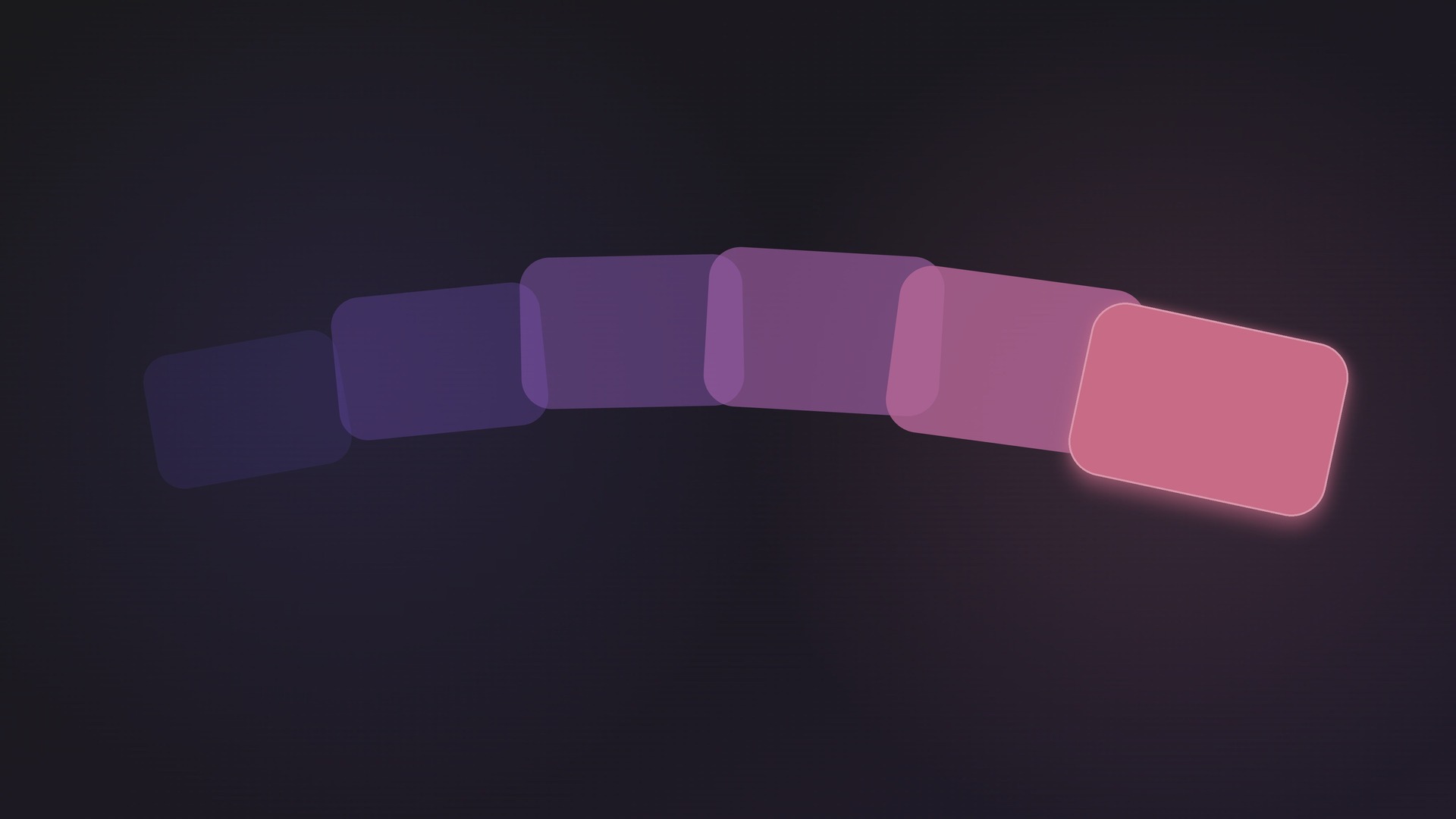
Instead of keyframing every property by hand, you design a start scene and an end scene. SSHOW compares them and animates the differences — position, size, color, opacity, and more — into a smooth transition.
Note This page is about transitions — motion between two scenes. For motion inside a single scene, keyframed on a timeline, see the Animation guide.
How transitions work
When you move from one scene to the next, the engine matches up objects and animates the change. The rules are simple and predictable.
- Objects with the same name across two scenes are smoothly morphed from one state to the other.
- Objects that only exist in the new scene fade in; objects that are removed fade out.
- The scene background color cross-fades between the two scenes.
Tip Give matching objects the same name in both scenes to make them morph. Rename to break the match and get a clean fade instead.
Timing
Every transition is controlled by a duration and an optional delay, and you can fine-tune timing per property.
- Duration
- How long the transition takes, in milliseconds.
- Delay
- How long to wait before the transition begins, in milliseconds.
- Per-property timing
- By default every property follows the scene's transition (the panel shows "Inherited from Scene"). Click Override to give one property its own curve and timing — let opacity ease while position springs — right down to a single axis like X or width.
Easing
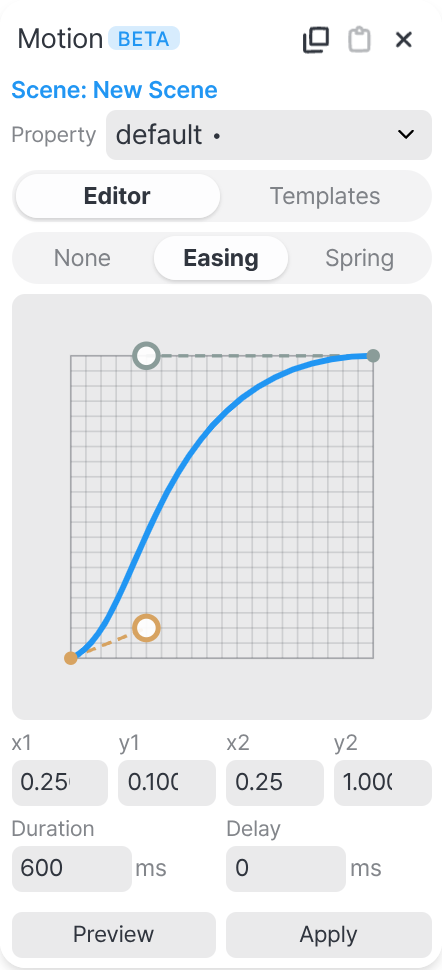
Easing shapes the pace of the motion with a curve. The Editor tab's type toggle picks the kind of motion — None, Easing, or Spring — and Easing gives you a custom cubic-bezier curve.
None turns animation off for the property — it snaps instantly to the new state with no in-between. Easing and Spring give you the two ways to shape that in-between.
Drag the two control points of the cubic-bezier to dial in exactly the feel you want. Preview plays it on the selected object before you commit with Apply, and your recent curves are saved for reuse.
Motion templates
Switch to the Templates tab for a searchable library of named presets, grouped by feel — so you can reach for a motion without drawing a curve:
- Basic
- Smooth
- Expressive
- Snappy
- Bouncy
Tip Tweens you use often collect under Recent — right-click one to keep it as a favorite.
Spring
Prefer physical motion? Spring replaces the curve with a simulated spring that settles naturally. Three parameters shape it.
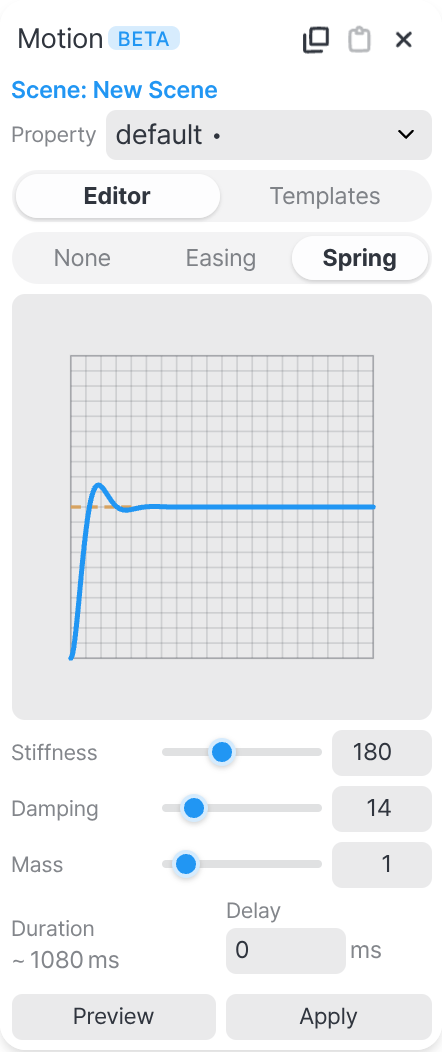
- Stiffness
- How strong the spring is. Higher values snap faster.
- Damping
- How quickly motion settles. Lower values bounce more before resting.
- Mass
- The weight of the object. Heavier feels slower and more sluggish.
Tip Tune in the panel, hit Preview to play the transition both ways before committing, then Apply to keep it — or Revert to discard.
Reuse a transition
Dialed in an easing curve or a spring you like? The Motion panel's copy and paste buttons lift the current tween and drop it onto the same property of another object or scene — so a feel you've tuned once carries across your whole story.
Tip Paste targets the property you're editing, so a tween tuned on opacity can be reused on opacity across several selected objects at once.
What can animate
Transitions can move almost any visual property of an object between scenes.
- Position
- Scale
- Rotation (X · Y · Z)
- Depth
- Perspective
- Skew
- Size
- Opacity
- Fills & effects
Transition or timeline?
Transitions are one half of motion in SSHOW; the scene timeline is the other. They answer different questions, and the right one is usually obvious once you know which you're asking.
They compose freely: a scene can arrive with a transition and then run its own timeline, and both use the same easing curves and springs.
Read the animation guide