Whether you're building a presentation, a short animated story, or an interactive showcase, SSHOW gives you precise design tools, a transition engine that animates between scenes automatically, and a timeline for keyframing motion inside one — in your browser, or in the desktop Studio app.
Create in six steps
The shortest path from a blank canvas to a finished piece.
-
1
Add a scene
Every project is a sequence of scenes. Set the canvas size once and it applies to all of them.
-
2
Draw your objects
Use the toolbar to add shapes, text, images, and media to the canvas.
-
3
Style them
Apply fills, strokes, and effects from the inspector to give each object its look.
-
4
Add motion
Duplicate a scene, move things around, and SSHOW animates the difference as a transition — or switch to Animation mode and keyframe the movement inside a single scene.
-
5
Save your work
Click Save in the top bar to store your project. There's no autosave, and SSHOW warns you before you leave with unsaved changes.
-
6
Share or export
Publish a play link or export to video, PDF, image, and more.
The editor at a glance
Six regions make up the editor. You'll spend most of your time moving between them.
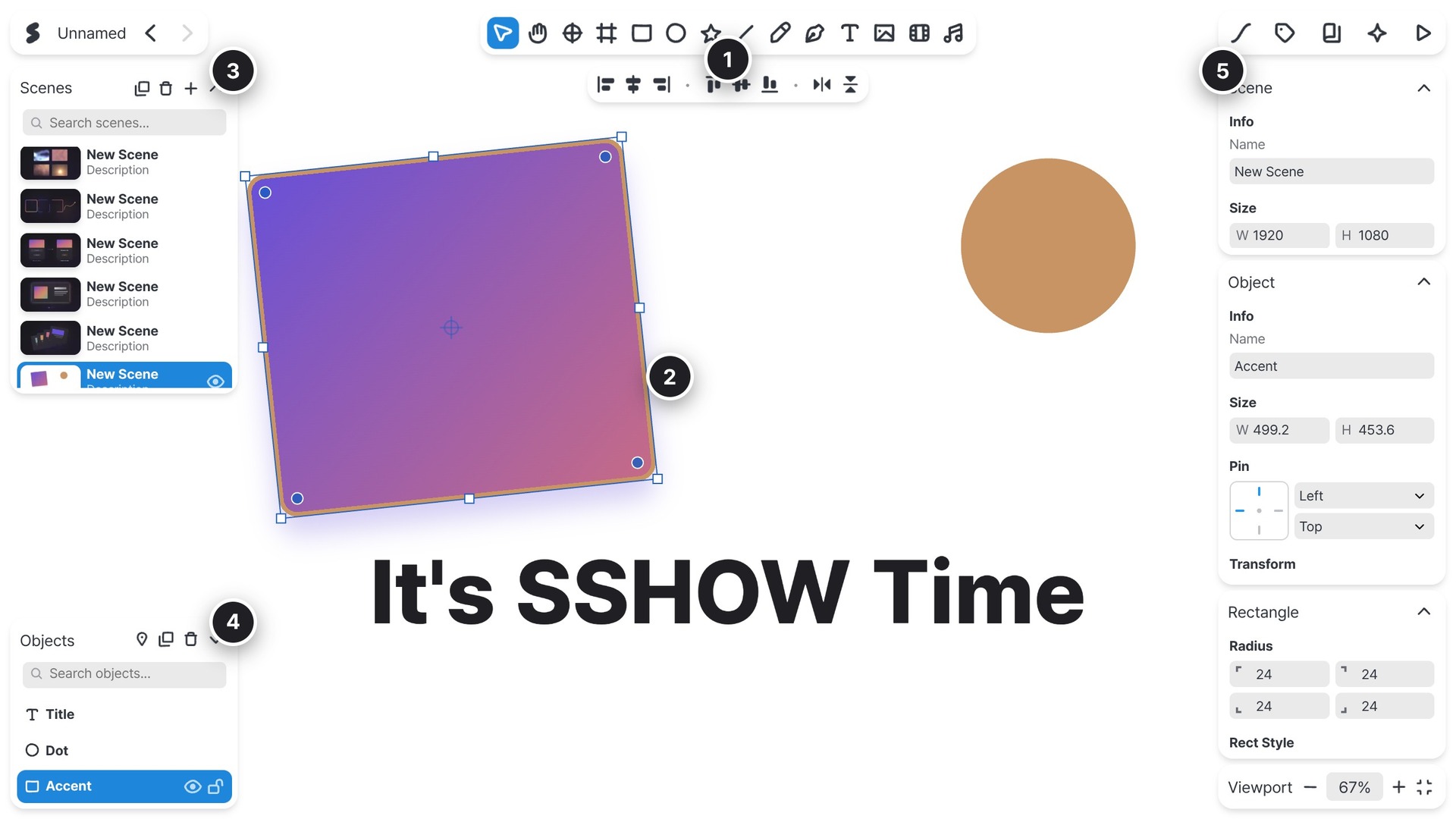
- 1Toolbar (top)
- Every creation tool — select, shapes, text, image, media. Covered in Tools & shortcuts.
- 2Canvas (center)
- Your live workspace. Pan with the Move tool, zoom with the controls at the bottom-right.
- 3Scenes (left)
- The ordered list of scenes. Add, duplicate, reorder, and search them here.
- 4Objects (lower-left)
- The layer list for the active scene. Select, rename, reorder, lock, and hide objects.
- 5Inspector (right)
- Properties for the current selection — size, transform, fills, strokes, effects, and motion.
- 6Design / Animation (top-left)
- The mode switcher. Design is normal editing; Animation turns the Objects panel into a timeline so edits are recorded as keyframes — see the Animation guide.
Note A menu button at the top-left of the toolbar opens the project menu — Save a Copy, Import, Export, and SSHOW (about and settings). That's where the Import and Export panels mentioned throughout these guides are launched.
The right rail
The buttons in the top-right corner open the project-level panels — and the last one plays your project.

- Motion
- Opens the Motion panel to shape a scene's transition — see the Motion guide.
- Variables
- Opens the Variables panel to define reusable values — see the Variables guide.
- Notes
- Opens project and per-scene notes — see Tools & Shortcuts.
- AI
- Opens the AI Assistant to create or edit by describing what you want — see the AI guide.
- Plugins
- Opens the Plugins panel to run an installed plugin, or import a .sshowplugin file — see the Plugins guide.
- Search
- Opens search and replace across the whole project — text, layer names, scene names, and notes.
- Play
- Enters Play mode to present the project full-screen — see Present & share.